Advanced Analytics Dashboard
Introduction
The all new Dashboard includes both old reports that you are familiar with, and new reports that we have conceptualised. The Dashboard consists of 5 tabs or sections for better segmentation of the reports and visualisations.
Main KPIs tab
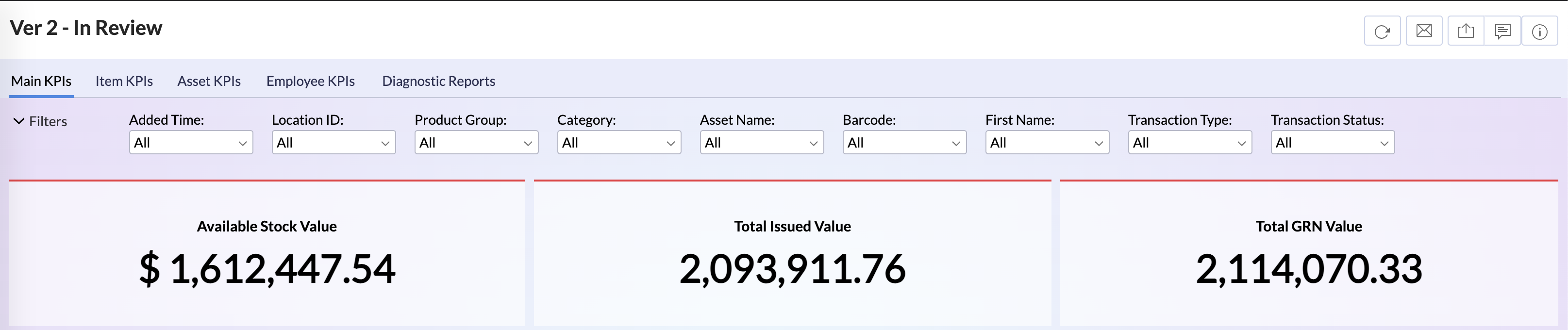
The top 3 widgets display the Available Stock value, Consumed Value, and GRN Value. By default it will display the total value across all locations since the system was implemented, and it is filterable by the global user filters at the top of the dashboard.
Location Leaderboard Section
This section has 3 reports named "Location Transaction Count", "Location Issued Total", "Location Available stock". Each of the reports displays the locations in descending order in regard to the transaction count, issued total, available stock respectively.
Consumption Trend - V2.0 and Consumption Trend by Quantity
These 2 visualisations illustrate the trend of consumption through time, in terms of value and quantity respectively.
Comparison of Issues and GRN Values - In Review
This visual allows us to visually compare GRN values against issued Values in each particular month.
Categories by Consumption Value
This visual illustrates each 'Product Group' consumption value or issued total, and it can be further drilled down to 'Category' and idnetify the breakdown of consumption within the 'Category'.
Reasons by Consumption Value
This chart illustrates 'Order Reasons' and their relevant issued total.
Stock Transfer Matrix
This report displays the Stock Transfers across the group. The First column contains the source location, and the locations in the other columns are the locations that have made the request. The global location filter will not work for this report, instead use the 'Source Location' and 'Requested Location' filters located in the report itself.
Activity Feed - Last Hour
This report details the transactions that have taken place on the Trace it system, in the past hour. Please note the dashboard gets updated on an hourly basis, therefore this report does not get updated in real time.
Item KPIs tab
The top 3 widgets; "No. of SKUs", "Most Frequently Issued Item", "Largest Spend Item".
No. of SKUs, details the number of SKUs in available in the inventory
No. of SKUs, details the number of SKUs in available in the inventory
Items by Consumption Value and Inventory Value
These 2 visualisations illustrate the consumption total and Inventory of all items.
Monthly Consumption
This report details the monthly consumption of each SKU through time.
Most Common Items and Least Common Items
This report represents the items that have been used by the most number of users and least number of users respectively.
Asset KPIs
The first 2 widgets display the number of assets that have had spares issued to, and needles issued to respectively.
Machine Spares Cost
This chart visualises the cost incurred (Consumed Value in Spares) by each machine type and is colour coded by barcode.
Parts Used on Machines - V2
This report details the SKUs that have been issued to specific barcodes.
Frequently Worked on Machines
This report details assets that have had many spare parts issued to.
Employee KPIs
The first 2 widgets display the number of mechanics issued to, and the number of operators issued to (active mechanics and operators)
Mechanics by Consumption Value and Operators by Consumption Value
High Value Item Usage by Person
Consumption report
Unusual Quantities in a Single Order
Deprecated
Aging and Aging with Movement
Mechanics by Consumption Value and Operators by Consumption Value
These 2 reports visualise the consumption value or issued total of Mechanics and Operators Respectively
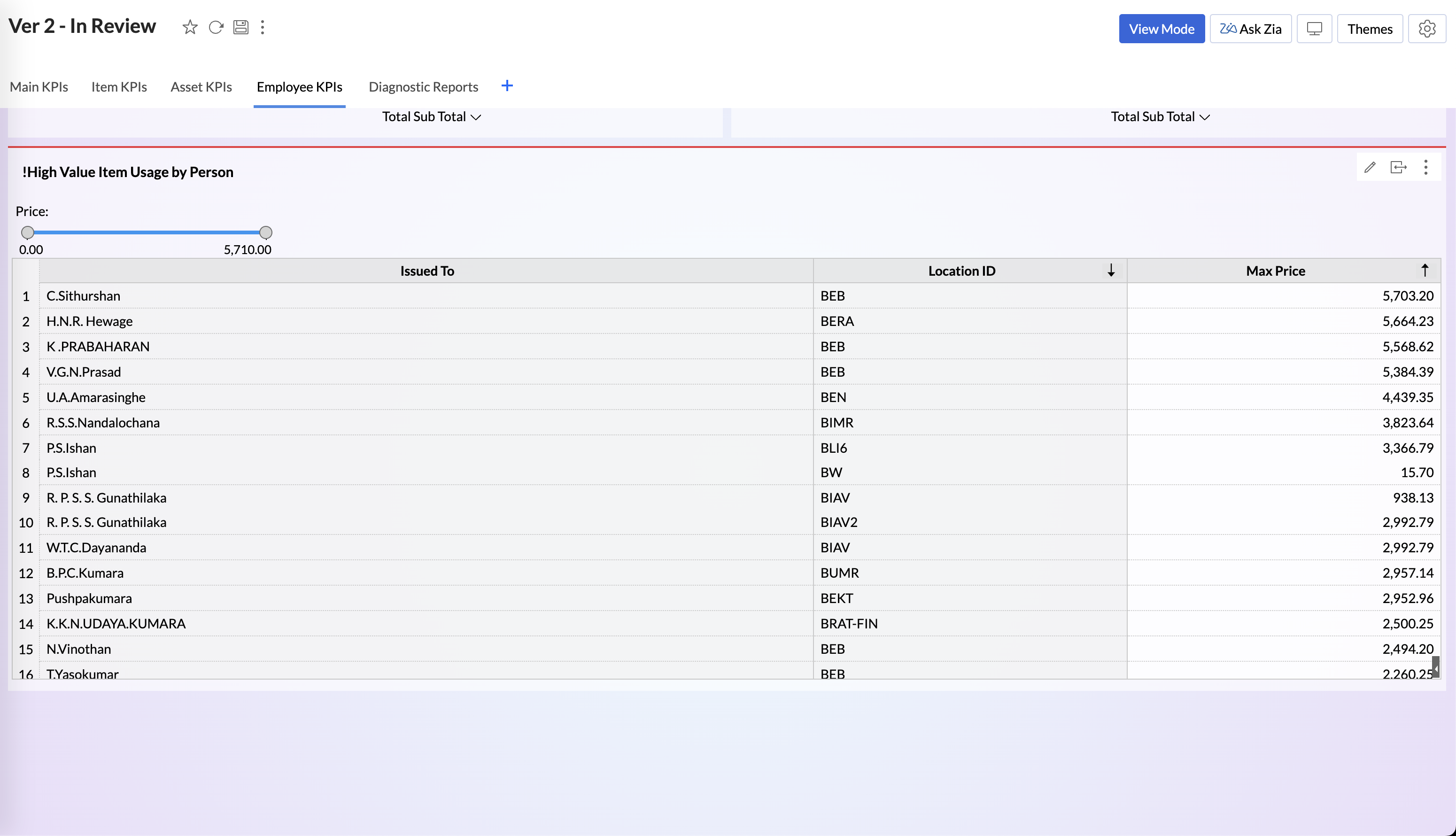
High Value Item Usage by Person
This report details mechanics that have consumed high value items, the price column is the price of the item that had been issued to theDiagnostic Reports tab
This tab contains specialised reports that do not neatly fit into the prior segmentations, and are purpose built for specific diagnosis situations.
Consumption report
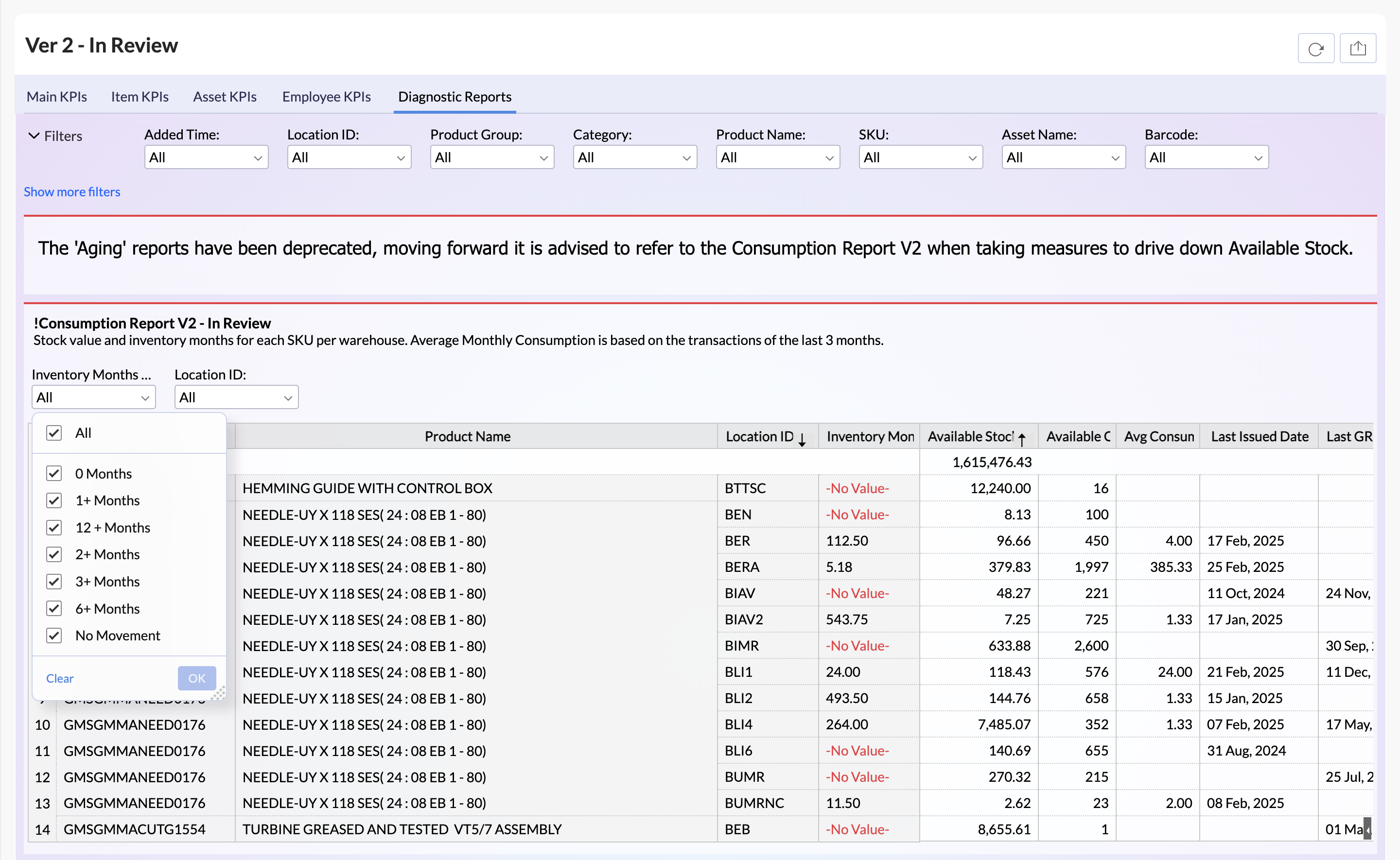
This report details the inventory months, available stock value, quantity, average consumption, and last issued date of each SKU at each warehouse.
Inventory Months is based on the Total Available Quantity over the Average Consumption Quantity. Where Average Consumption Quantity is the average per month and is based on the consumption of that particular SKU at that warehouse during the past 3 months. The user filter in the report can be used to 'Filter Inventory Months by specific buckets such as 0 months (Less than a month), or 12+ Months (More than 12 months of Inventory Months). The highlighted dropdown selection in the above screenshot is labelled as 'No Movement' which can be use to filter just the SKU that have had no consumption within the last 3 months, and thus they don't have Inventory Months to be calculated.
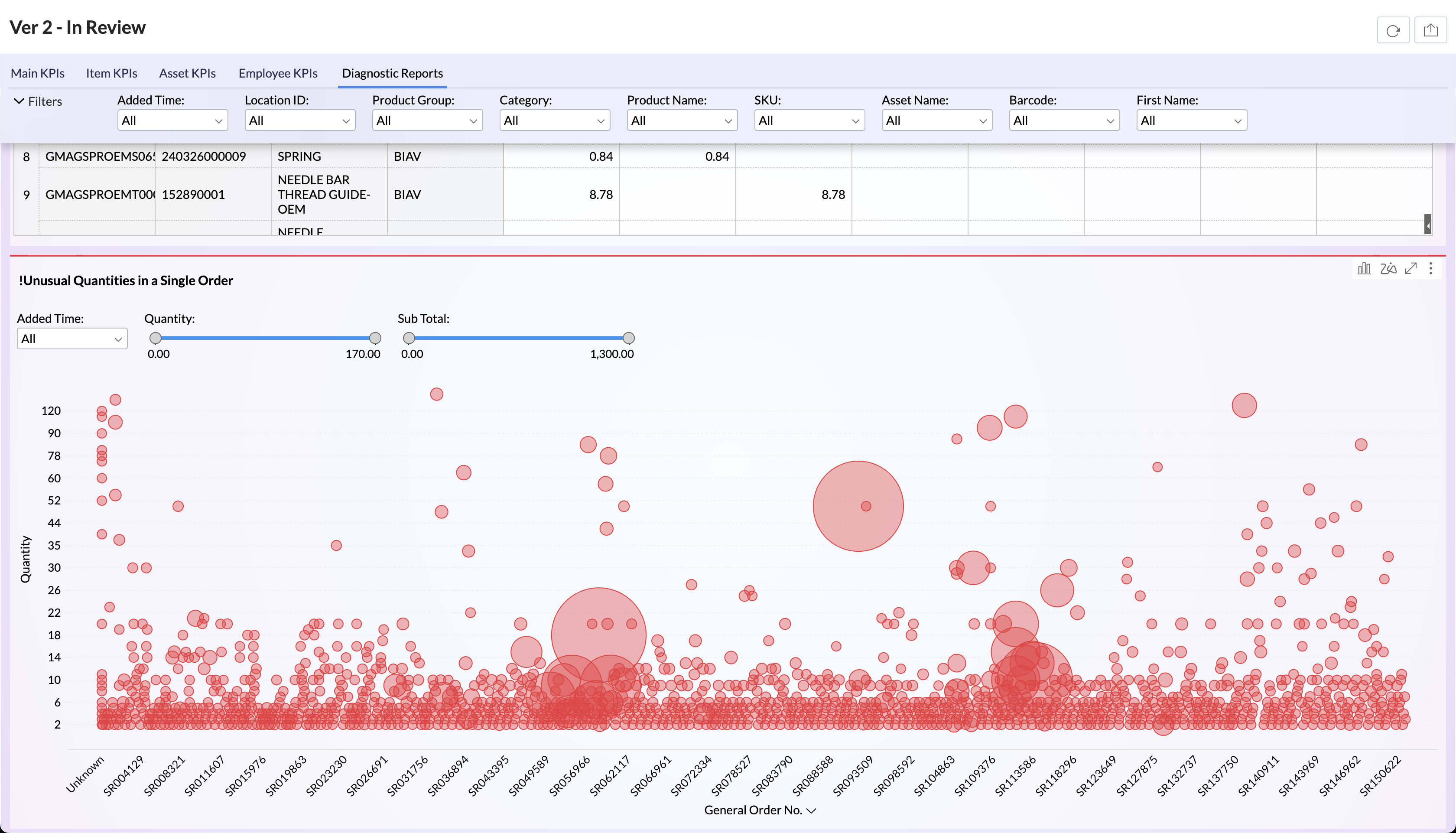
Unusual Quantities in a Single Order
This visualisation illustrates Spares/Component orders that are above 1 quantity. This is to identify spare part orders that may have a non standard quantity ordered. The size of the circles corresponds with the value of the order. It is best to use the sliders in the report to narrow down the quantity and highlight larger quantity orders.
Deprecated
Aging and Aging with Movement
These 2 reports explore and represent the aging of inventory in 2 different methodologies.
The standard aging report details the age of inventory of specific SKUs and particular plants. The age is defined as the number of months that have lapsed since the day it was added to the system inventory.
The aging with movement report implements the same concept for aging but with an additional concept known as movement. There are two types of 'Moving Status'; 'Moving' and 'Non-Moving'. Inventory of an SKU at a particular warehouse will be classified into an age bucket depending on the day it was added to the system inventory, and then its 'Moving Status' will be dependent on whether any portion/amount of that stock has been issued or not. If it has experienced issues it will be classified as 'Moving'. If it hasn't experienced any issues since the day it was added to the inventory it will be classified as 'Non-Moving'.
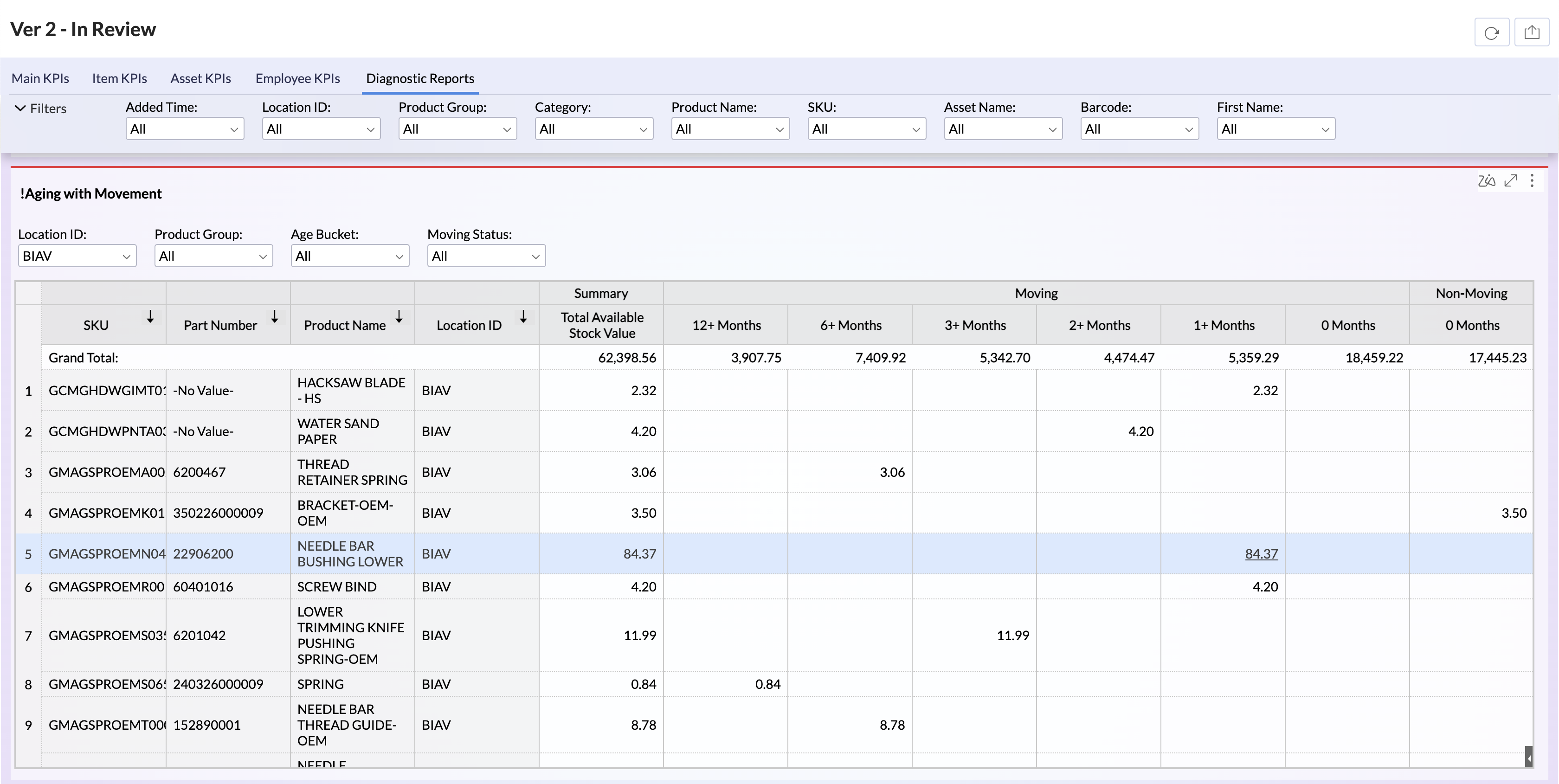
The highlighted example in the above screenshot, shows us that the item named 'Needle Bar Bushing Lower' at the location named 'BIAV' has been added to the Inventory 1+ Months ago (More than a month ago, but less than 2 months), and some portion of that inventory has been issued thus it is categorised under 'Moving'.
Related Articles
Asset Operations
The Asset Operations module manages the lifecycle changes of assets within the organization. It ensures all operational changes such as disposal, servicing, and ownership transfer are recorded with proper approvals, providing full traceability and ...Getting Started Guide
Welcome to Traceit.live! Traceit.live is an ever-evolving platform that traces components and consumables used on assets, tracking their journey from inventory intake to end-of-life. With powerful analytics, controls, and transaction-based workflows, ...